Gaming A Laptop
A practical step-by-step guide to gaming a laptop, including preparation, instructions, common issues, tips, and next steps.
Gaming On A Laptop
Getting the best gaming experience on a laptop isn't just about installing a game and clicking play. To get smooth, high-quality graphics without your machine sounding like a jet engine, you need to optimise a few key settings. This guide walks you through the essential steps to prepare your laptop for gaming, from adjusting power settings and updating drivers to managing heat and tweaking in-game options. Follow these instructions to unlock your laptop's true gaming potential and avoid common performance problems.
Fast Answer
- Power Plan: Set to 'High Performance' or 'Ultimate Performance'.
- Graphics Drivers: Update to the latest version from NVIDIA or AMD.
- Game Mode: Turn on in Windows Settings.
- Background Apps: Close web browsers and other unnecessary programs.
- Ventilation: Ensure air vents are unblocked and use a hard, flat surface.
Before You Start
- A laptop, preferably with a dedicated graphics card (NVIDIA GeForce or AMD Radeon).
- The laptop's official power adapter.
- A stable internet connection for downloading drivers and game updates.
- An external mouse for better control.
- A flat, hard surface like a desk or table.
- Administrator access on your laptop to install software and change system settings.
Step-by-Step Instructions
Connect to Power and Set the Right Power Plan
Your laptop performs differently depending on its power source. On battery, it prioritises efficiency. Plugged in, it can unleash its full power. This is the first and most important step.
First, plug your laptop into the wall using its original charger. Next, you need to tell Windows to focus on performance over power saving. To do this, go to the Start Menu, type "Choose a power plan", and open it. You will see several options. Select "High Performance". If you see an "Ultimate Performance" option, choose that for the absolute best results. This setting tells your computer to run its components, like the processor (CPU), at full speed while gaming.
Update Your Graphics Drivers
The graphics card, or GPU, is the most important component for gaming. Its driver is the software that allows it to communicate with your games. Keeping this driver updated is critical for performance, bug fixes, and compatibility with new games.
First, you need to know which graphics card you have. Right-click the Start Menu, select "Device Manager", and expand the "Display adapters" section. You will likely see two entries: one for integrated graphics (usually Intel or AMD) and one for your powerful dedicated card (NVIDIA GeForce or AMD Radeon). You need to update the driver for the dedicated card.
Go directly to the manufacturer's website to download the latest drivers. Do not rely on Windows Update for this.
- For NVIDIA GPUs, download the GeForce Experience application from the NVIDIA website. It will automatically detect your GPU and notify you of new drivers.
- For AMD GPUs, download the AMD Software: Adrenalin Edition from the AMD website. It serves the same purpose, managing your drivers and game settings.
Optimise Windows Settings for Gaming
Modern versions of Windows have built-in features designed to improve gaming performance. The most important of these is Game Mode.
Open Windows Settings, go to the "Gaming" section, and select "Game Mode" from the menu on the left. Make sure the toggle is switched to On. Game Mode helps by preventing Windows Update from performing driver installations or sending restart notifications during gameplay. It also helps achieve a more stable frame rate depending on the specific game and system.
While you are in the Gaming section, you can also manage the Xbox Game Bar. It can be useful for recording clips, but its notifications can be distracting. You can configure or disable it from here if you prefer.
Close Unnecessary Background Applications
Anything running in the background uses up your laptop's limited resources, mainly CPU power and RAM. Before you start a game, it's vital to close down anything you don't absolutely need.
Common culprits include web browsers (especially with many tabs open), cloud storage services like Dropbox or OneDrive that might be syncing files, music streaming apps, and communication apps like Slack or Teams. Press Ctrl + Shift + Esc to open the Task Manager. Look at the "Apps" and "Background processes" lists. If you see something using a high percentage of CPU or Memory that isn't your game, select it and click "End task". Be careful not to end critical system processes you don't recognise.
Also, check the system tray in the bottom-right corner of your taskbar. Right-click on icons for programs you don't need and choose to "Exit" or "Quit".
Manage Your Laptop's Temperature
Heat is the number one enemy of performance when gaming on a laptop. Laptops have to pack powerful components into a very small space, and they can get hot quickly. When a component like the CPU or GPU gets too hot, it automatically slows itself down to prevent damage. This is called thermal throttling, and it's the most common cause of sudden, severe frame rate drops.
The best way to fight heat is to ensure good airflow.
- Always game on a hard, flat surface. A desk is perfect. A bed, carpet, or your lap will block the intake vents on the bottom of the laptop.
- Keep the exhaust vents clear. These are usually on the back or sides. Don't push the laptop right up against a wall or books.
- Consider a laptop cooling pad. These are stands with built-in fans that force more cool air into your laptop's intake vents. They can make a noticeable difference in temperatures.
Configure In-Game Graphics Settings
Every game has a menu of graphics settings that allow you to balance visual quality with performance (measured in frames per second, or FPS). Higher settings make the game look better but are more demanding on your GPU, resulting in lower FPS. Your goal is to find a sweet spot that looks good and maintains a smooth, stable frame rate.
Here are the most important settings to adjust:
- Resolution: For the sharpest image, set this to your laptop screen's native resolution (e.g., 1920x1080). Lowering it will boost FPS significantly but will make the game look blurry.
- Shadow Quality: High-quality, dynamic shadows are one of the most demanding settings. Turning this down from 'Ultra' to 'High' or 'Medium' can give you a huge FPS boost with little noticeable difference.
- Anti-Aliasing (AA): This smooths out jagged edges on objects. It can be very taxing. Try a lower setting like FXAA or SMAA, or turn it off completely if you need more frames.
- Texture Quality: This depends on how much video memory (VRAM) your GPU has. If you have 6GB or more, you can usually set this to 'High'. If you have 4GB or less, 'Medium' is a safer bet to avoid stuttering.
- V-Sync: This synchronises the game's FPS to your screen's refresh rate to prevent "screen tearing". However, it can add a slight delay to your controls (input lag). Try turning it off first. Only turn it on if you see distracting horizontal lines tearing across the screen during fast motion.
Install Games on the Right Drive
Many modern laptops come with two types of storage drives: a smaller, faster Solid State Drive (SSD) where Windows is installed, and a larger, slower Hard Disk Drive (HDD) for mass storage. For the best experience, you should always install your games on the SSD.
An SSD can read and write data many times faster than an HDD. This won't necessarily give you more FPS, but it will dramatically reduce loading times. Games will launch faster, levels will load in seconds instead of minutes, and you'll experience less in-game stuttering when the game needs to load new assets. When you install a new game through a launcher like Steam or the Epic Games Store, it will ask you where you want to install it. Be sure to choose a location on your SSD (usually the C: drive).
Quick Reference
| Situation | Use this | Why |
|---|---|---|
| My game is stuttering or has low FPS. | Lower in-game settings like shadows, anti-aliasing, and effects. Close background apps. | These settings use the most GPU and CPU power. Freeing up resources directly improves frame rate. |
| My laptop is getting extremely hot and loud. | Place it on a hard, flat surface. Check that vents are clear. Use a cooling pad. | Proper airflow is essential to prevent thermal throttling, where the laptop slows itself down to cool off. |
| Games are taking a very long time to load. | Install the game on an SSD if available. Check that the HDD is not fragmented. | SSDs read data much faster than traditional Hard Disk Drives, dramatically cutting load times. |
| The screen image looks torn during fast movement. | Turn on V-Sync in the game's settings, or enable G-Sync/FreeSync if your display supports it. | This synchronises the game's frame rate with your monitor's refresh rate to eliminate the tearing effect. |
Common Problems When Gaming on a Laptop
Even with a perfect setup, you might run into issues. Here are some of the most common problems and how to fix them.
Problem: Sudden FPS Drops and Stuttering
You're playing smoothly, and then suddenly the game becomes a slideshow for a few seconds. This is often caused by thermal throttling. Your laptop got too hot, and its CPU/GPU slowed down to protect itself.
Fix: Double-check your ventilation. Ensure no vents are blocked and consider using a cooling pad. Another common cause is a background process starting unexpectedly, like an antivirus scan or a file sync. Use the Task Manager to check for any non-game processes that are suddenly using a lot of CPU power.
Problem: The Game Crashes or Won't Launch
This is a frustrating issue that can have many causes.
Fix: The first step is always to ensure your graphics drivers are up to date. An old driver is the number one cause of new games failing to launch. If that doesn't work, try verifying your game files. In Steam, you can do this by right-clicking the game in your library, selecting 'Properties', going to the 'Local Files' tab, and clicking 'Verify integrity of game files...'. This will check for and repair any corrupted files. Finally, some overlay software (like Discord, MSI Afterburner, or screen recorders) can conflict with games. Try disabling them to see if that resolves the crash.
Problem: High Ping and Internet Lag
If you're playing an online game and your character is teleporting around or actions are delayed, this is network lag, not a performance issue with your laptop.
Fix: The most reliable solution is to use a wired Ethernet connection instead of Wi-Fi. It provides a much more stable and faster connection. If you have to use Wi-Fi, try to get closer to your router and connect to its 5GHz network band if available, as it's typically faster and less congested than the 2.4GHz band. Also, make sure no one else on your network is doing something bandwidth-heavy, like streaming 4K video or downloading large files.
Advanced Tips for Gaming on a Laptop
Once you've mastered the basics, there are a few more advanced techniques you can explore to squeeze even more performance out of your machine.
Debloating Windows
Laptops often come from the factory with a lot of pre-installed software, often called "bloatware". Much of this can run in the background, consuming resources. Go to "Add or remove programs" in Windows settings and take a careful look at the list of installed applications. If you see software from the laptop manufacturer or third-party tools you never use, consider uninstalling them.
Cleaning Your Laptop's Fans
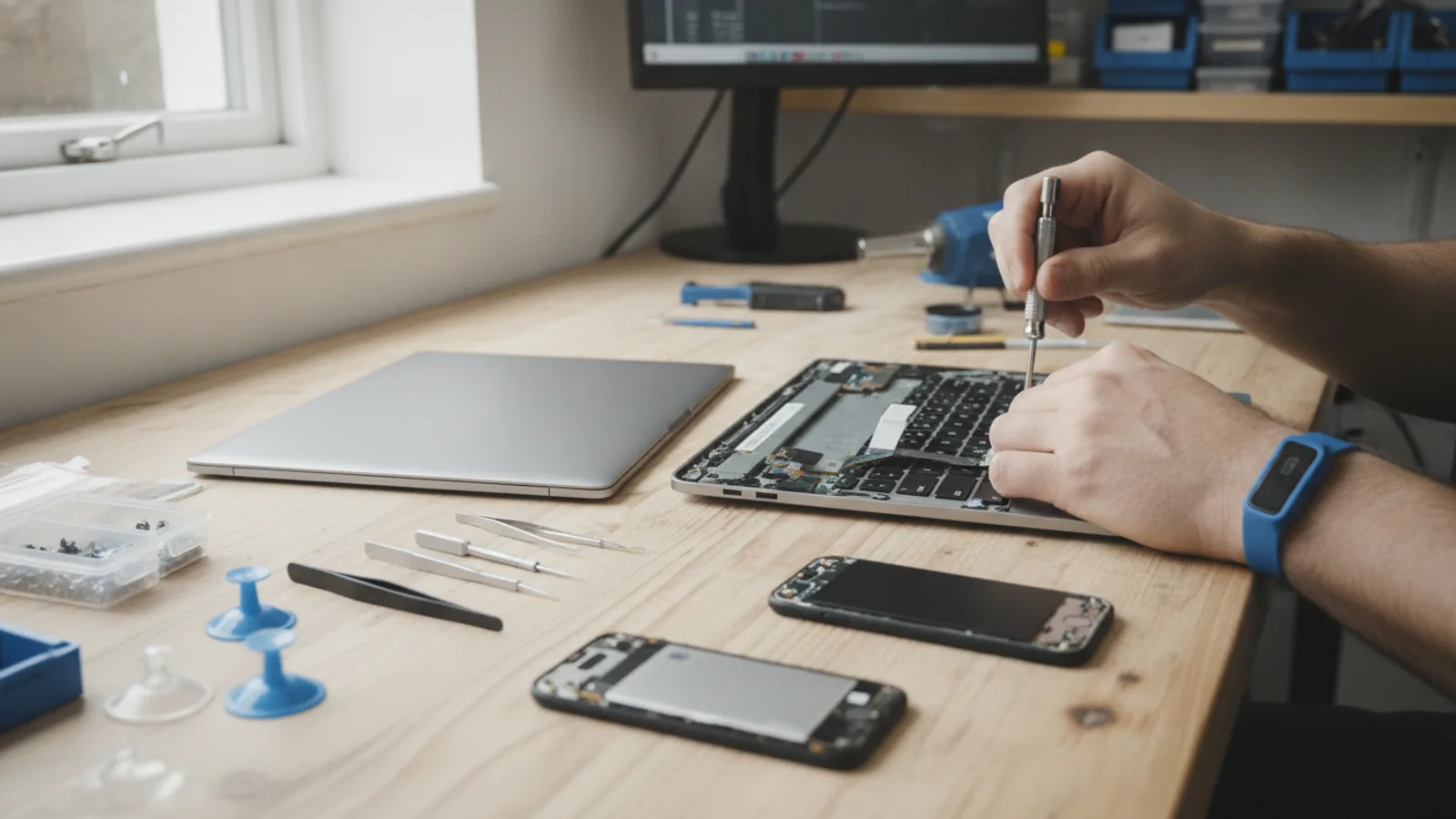
Over time, dust and debris will build up inside your laptop, clogging the heatsinks and fans. This acts as an insulator, trapping heat and making thermal throttling worse. About once a year, it's a good idea to open up your laptop and clean the fans with a can of compressed air. Warning: This is a more advanced task. You should search for a specific guide or video for your exact laptop model to see how to open it safely without causing damage.
Undervolting your CPU or GPU
This is a technique for advanced users. It involves using software to reduce the amount of voltage going to your processor. When done correctly, this can significantly lower temperatures without affecting performance, sometimes even improving it by allowing the chip to sustain its boost speeds for longer. However, doing this incorrectly can lead to system instability and crashes. Only attempt this after researching detailed guides specific to your laptop's CPU and GPU.
Gaming On A Laptop FAQ
Is a gaming laptop as good as a gaming desktop PC?
For the same price, a desktop will almost always offer more performance, better cooling, and easier upgrades. However, the main advantage of a laptop is its portability. Modern high-end gaming laptops are incredibly powerful and are more than capable of running the latest games at high settings, closing the gap with desktops more than ever before.
Can I improve performance by connecting an external monitor?
Yes, and in some cases, it can provide a significant performance boost. Many laptops route the display signal from the powerful dedicated GPU through the weaker integrated graphics chip before it gets to the laptop's screen. By connecting an external monitor to a port that's wired directly to the dedicated GPU (often a DisplayPort or a specific USB-C port), you can bypass this step and gain extra FPS. This is often referred to as using a 'MUX switch'.
How long will my gaming laptop be able to play new games?
A mid-to-high-range gaming laptop should be able to play new, demanding titles comfortably for about 3-4 years. After that, you may need to start lowering the graphics settings more significantly to maintain a smooth frame rate. It will continue to play less demanding or older games perfectly well for many more years beyond that.
Is it bad to game on a laptop for several hours straight?
No, as long as the laptop is properly cooled. Gaming laptops are designed and built to handle being under heavy load for extended periods. The key is to ensure it has good ventilation and isn't constantly hitting extreme temperatures (above 95°C). If your cooling is adequate, you can game for as long as you like without damaging the components.
Final Checklist for Gaming on a Laptop
- Laptop is plugged in with its official AC adapter.
- Windows Power Plan is set to 'High Performance' or the manufacturer's 'Turbo' mode.
- Graphics drivers are updated to the latest version.
- Windows Game Mode is turned On.
- All unnecessary background programs (browsers, launchers, cloud sync) are closed.
- The laptop is on a hard, flat surface with clear airflow around all vents.
- In-game settings are balanced for a stable frame rate (aim for 60 FPS).
- Games are installed on the SSD for fast loading times.