Bose Quietcomfort Headphones
A practical step-by-step guide to bose quietcomfort headphones, including preparation, instructions, common issues, tips, and next steps.

Bose Quietcomfort Headphones
This guide helps you set up, use, and care for your Bose QuietComfort headphones. You'll learn how to connect them to your devices using Bluetooth, adjust their powerful noise cancelling features, customise settings with the Bose Music app, and keep them in top condition for years of listening. Whether you're new to Bose or need a refresher, this guide ensures you get the best experience from your headphones.
Fast Answer
- To Pair: Press and hold the Bluetooth button until you hear "Ready to connect"
Before You Start
- Your Bose QuietComfort headphones.
- A fully charged smartphone, tablet, or computer with Bluetooth enabled.
- The Bose Music app installed on your mobile device (available on Apple App Store or Google Play Store).
- The charging lead that came with your headphones (typically USB-C).
- Access to a reliable Wi-Fi connection for app and firmware updates.
Step-by-Step Instructions
Charge Your Bose QuietComfort Headphones Fully
Before you begin using your headphones, it's a good idea to ensure they are fully charged. This guarantees you have enough power for initial setup and an uninterrupted listening experience. Using a low battery can sometimes cause connection or performance issues.
Locate the USB-C charging port on your headphones. Connect the smaller end of the supplied USB-C charging lead into this port, and plug the larger USB-A end into a suitable power source, such as a wall adapter (not usually supplied) or a computer's USB port. The battery indicator light on the headphones will glow amber while charging and turn solid white when fully charged. A full charge can take around 2 to 3 hours.
Install and Set Up the Bose Music App
The Bose Music app is essential for unlocking the full potential of your Bose QuietComfort headphones. It allows you to customise settings, manage connections, update firmware, and fine-tune your audio experience. It's available for both Apple iOS and Android devices.
On your smartphone or tablet, open the respective app store (App Store for Apple devices, Google Play Store for Android). Search for "Bose Music" and download the app. Once installed, open the app. You may be prompted to create a Bose account or sign in if you already have one. Follow the on-screen instructions to get the app ready for pairing your headphones.
Pair Your Headphones with a Device via Bluetooth
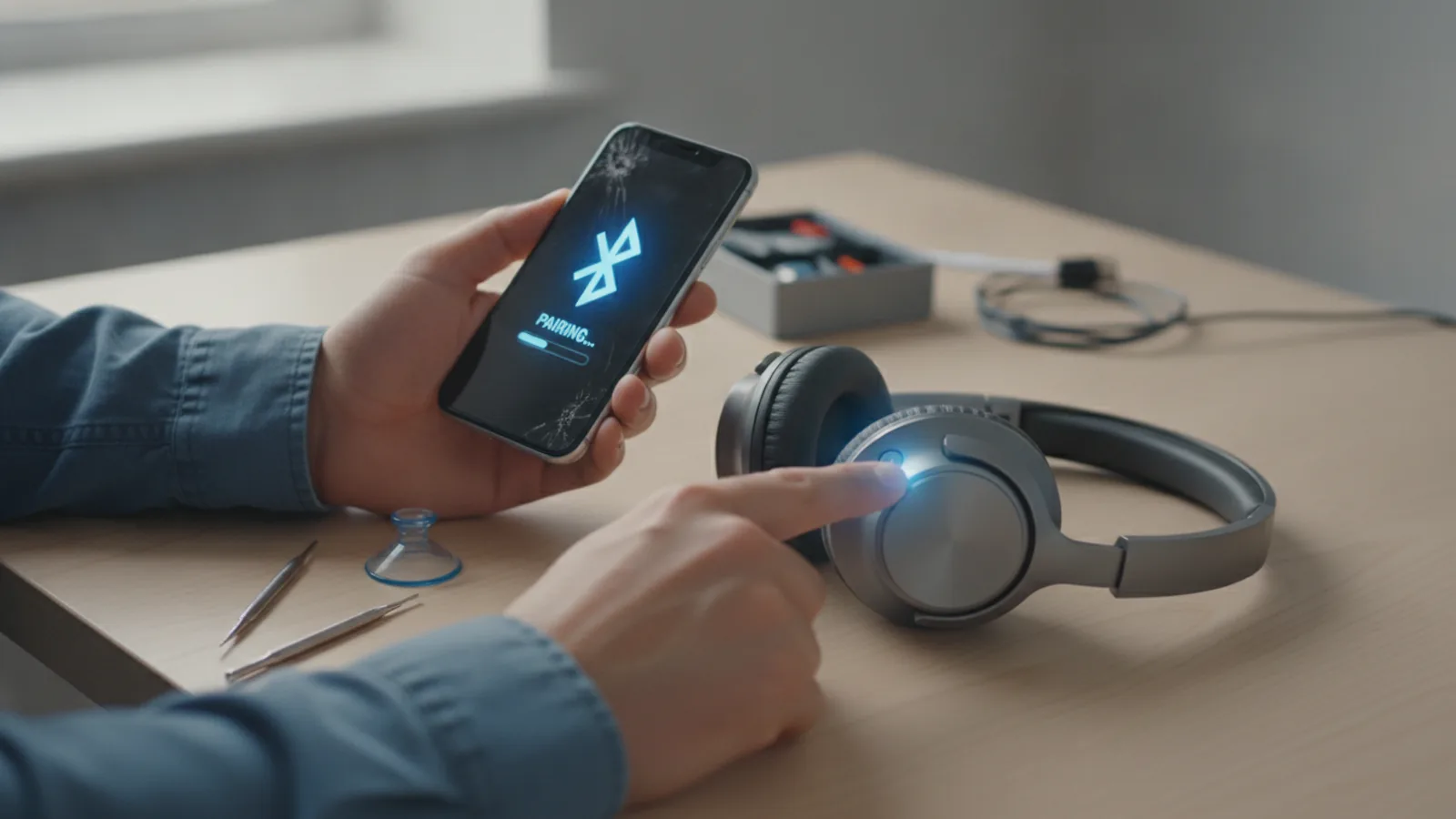
Pairing is the process of connecting your Bose QuietComfort headphones to your phone, tablet, or computer wirelessly using Bluetooth technology. This allows them to communicate and play audio. You'll typically do this once for each new device you want to connect to.
First, make sure your headphones are turned on. Slide the Power/Bluetooth switch to the 'on' position. Next, slide the Power/Bluetooth switch to the right and hold it for about 2-3 seconds until you hear "Ready to connect" and the Bluetooth indicator light slowly pulses blue. This means your headphones are in pairing mode and actively looking for a device.
Now, open the Bluetooth settings on your smartphone, tablet, or computer. Look for "Bose QC Headphones" or "Bose QuietComfort" in the list of available devices and select it. Once connected, you will hear "Connected to [Device Name]" from your headphones, and the Bluetooth indicator light will glow solid blue or white depending on your model. You can also pair through the Bose Music app by following its guided instructions.
Understand and Use Noise Cancelling and Aware Mode
Bose QuietComfort headphones are renowned for their noise cancelling capabilities, which block out unwanted sounds. They also feature an "Aware Mode" (sometimes called Transparency Mode) that lets you hear your surroundings without removing your headphones.
Your headphones usually have a dedicated 'Action Button' or a multi-function button that controls noise cancelling. Pressing this button typically cycles through different noise cancelling modes, such as "Quiet" (maximum noise cancelling), "Aware" (transparency), or custom modes you set in the app. For example, in Quiet Mode, you'll experience a significant reduction in background noise, perfect for travel or focused work.
In Aware Mode, microphones on the headphones pick up external sounds and play them through the speakers, allowing you to hear announcements, traffic, or conversations without taking your headphones off. You can fine-tune the level of noise cancelling or define custom modes within the Bose Music app, creating specific presets for different situations (e.g., max quiet for a flight, a lighter setting for walking in the city).
Customise Settings Using the Bose Music App
The Bose Music app is your control centre for personalising your listening experience. Beyond basic noise cancelling adjustments, it offers a range of options to tailor your headphones to your preferences.
Open the Bose Music app and ensure your headphones are connected. From the main screen, you'll typically see options to manage your connected headphones. Here, you can adjust the noise cancelling level precisely, from maximum quiet to full aware mode. Some models allow you to create custom sound modes or adjust the equaliser (EQ) settings to boost bass, treble, or mids according to your taste. You can also manage your connected Bluetooth devices, rename your headphones, and access product support.
Take some time to explore the different sections of the app. You'll find controls for voice prompts, standby timer settings, and information about your headphones, including their battery level and firmware version. Regularly checking the app can also notify you of new features or updates.
Use Basic Controls and Functions
Your Bose QuietComfort headphones come with intuitive physical buttons for common functions, allowing you to control your audio and calls without needing to reach for your phone. Familiarising yourself with these controls will make your daily use much smoother.
Most models include a set of buttons on one of the earcups. These typically include:
- Volume Up (+) and Volume Down (-): Press these buttons to adjust the playback volume.
- Multi-function Button (often between the volume buttons): This is a versatile button. A single press usually plays or pauses audio, or answers/ends a call. A double press typically skips to the next track, and a triple press goes back to the previous track. Pressing and holding for a short time might activate your device's voice assistant (like Siri or Google Assistant).
Update Your Headphones' Firmware
Firmware is the internal software that runs your headphones. Bose regularly releases firmware updates to improve performance, add new features, fix bugs, and ensure compatibility with newer devices. Keeping your firmware up to date is crucial for the best experience.
Connect your headphones to your mobile device via Bluetooth and open the Bose Music app. The app will usually notify you if a new firmware update is available. If you see a notification, follow the on-screen instructions to download and install it. Ensure your headphones have at least 50% battery life before starting an update, and keep your device and headphones close together during the process. The update can take several minutes, and your headphones might restart during the installation.
Clean and Store Your Headphones Correctly
Proper cleaning and storage will help maintain the sound quality, appearance, and longevity of your Bose QuietComfort headphones. Regular care prevents grime build-up and damage.
To clean, gently wipe the earcups and headband with a soft, dry, lint-free cloth. If necessary, you can lightly dampen the cloth with water for more stubborn spots, but avoid getting any liquid into openings or ports. Never use harsh chemicals, alcohol, or abrasive cleaners, as these can damage the materials. For the ear cushions, which can sometimes collect dirt and skin oils, check if they are removable. If so, they might be washable according to specific instructions in your user manual, otherwise, a gentle wipe is best.
When not in use, always store your headphones in their supplied carrying case. This protects them from dust, scratches, and accidental impacts. Avoid leaving them in direct sunlight, extreme heat, or cold. Always ensure the headphones are dry before placing them in the case. Prolonged exposure to moisture can cause internal damage.
Quick Reference
| Situation | Use this | Why |
|---|---|---|
| Headphones won't turn on | Recharge the battery fully | Battery may be completely drained; a full charge ensures proper power. |
| Can't connect to device (no sound) | Put headphones in pairing mode and check device Bluetooth settings | Re-establishes the wireless connection; ensure device Bluetooth is on and visible. |
| Noise cancelling seems weak or ineffective | Adjust NC level in Bose Music app or ensure a snug fit | Incorrect settings, a poor seal around your ears, or a firmware issue can reduce effectiveness. |
| Sound quality is poor or distorted | Check audio source, re-pair, or try a different device | Could be a source issue, a weak Bluetooth connection, or an app setting. |
| Headphones not charging | Try a different charging lead, power source, or clean the port | Charging lead damage, a faulty USB port, or debris in the headphone port can prevent charging. |
Common Problems When You Use Bose Quietcomfort Headphones
Even with top-quality headphones like Bose QuietComfort, you might encounter a few common issues. Knowing how to quickly troubleshoot these can save you time and frustration.
Pairing and Connection Problems
One of the most frequent issues is difficulty pairing or maintaining a stable Bluetooth connection. If your headphones aren't connecting, first ensure they are charged and in pairing mode (pulsing blue light). Check your device's Bluetooth settings to see if it's already connected to another audio device. Try "forgetting" or "unpairing" the headphones from your device's Bluetooth list, then re-pair them from scratch. Sometimes, simply turning Bluetooth off and on again on your device, or restarting both your headphones and device, can resolve the issue.
No Sound or Low Volume
If you have no sound, check that your headphones are properly connected and that the volume on both your headphones and your connected device is turned up. Test with different audio sources or applications to rule out a problem with a specific app. Also, ensure that another device isn't currently playing audio through your headphones if you're using multi-point connection.
Noise Cancelling Not Working Effectively
If the noise cancelling doesn't seem as strong as it should be, first check your ear cushions. They should form a tight, comfortable seal around your ears. Gaps can significantly reduce NC performance. Make sure you've selected the highest noise cancelling mode in the Bose Music app. Old firmware can also affect NC, so check for updates. If you suspect physical damage or a sudden drop in performance, contact Bose support.
Battery Draining Too Fast
A rapidly draining battery can be frustrating. Ensure your headphones are fully charged before use. Certain features, like continuous music playback at high volumes or being constantly connected to two devices, can consume more power. If you rarely use them, make sure they are fully turned off, not just in standby. If the issue persists with normal use after a full charge and firmware update, the battery may be degrading, which is common over several years of use.
Audio Lag or Sync Issues
If you notice a delay between video and audio, especially when watching movies or playing games, this can be a common Bluetooth limitation. Try disconnecting and reconnecting your headphones. If possible, use a device that supports newer Bluetooth versions (e.g., Bluetooth 5.0 or higher) as they often offer better latency. Some apps or video players have an option to adjust audio delay, which can help.
Advanced Tips for Bose Quietcomfort Headphones
Beyond the basics, there are ways to enhance your Bose QuietComfort experience and ensure they serve you well for a long time.
Optimising for Specific Environments
Use the Bose Music app to create custom noise cancelling modes. For example, you might have one mode with maximum quiet for flights, another with a slight awareness level for office environments, and a third with full awareness for walking outdoors. Tailoring these settings means you always have the perfect listening experience at your fingertips without constant manual adjustments.
Mastering Multi-Device Connectivity
Bose QuietComfort headphones often support multi-point connections, meaning they can be paired and connected to two devices simultaneously (e.g., your phone and your laptop). Learn how to switch between them seamlessly. Often, audio from one device will automatically pause and switch to the other when new audio starts playing. You can also manage and prioritise connected devices within the Bose Music app, which is useful if you frequently switch between work and personal devices.
Fine-Tuning Your Sound with EQ
Don't settle for the default sound! The Bose Music app usually includes an equaliser (EQ) feature. This allows you to adjust the bass, mid-range, and treble levels to match your personal preferences or the genre of music you're listening to. Experiment with different settings to find what sounds best to your ears. A slight boost in bass for electronic music or a bit more treble for podcasts can make a significant difference.
Proactive Firmware Management
Make it a habit to regularly check for firmware updates through the Bose Music app, perhaps once every month or two. Updates often bring not only bug fixes but also new features or performance enhancements that you might otherwise miss. Staying current ensures your headphones are always performing at their best and compatible with the latest technologies.
Extending Battery Life Through Smart Use
While Bose headphones have excellent battery life, you can extend it further. Turn off noise cancelling when it's not needed, especially in quiet environments where you're just listening to music. Ensure you fully power off the headphones when not in use, rather than leaving them in standby. If you won't be using them for an extended period (e.g., a month or more), charge them to around 50-70% before storing them, as this is ideal for battery health.
Protecting Your Investment
Always use the supplied hard case for storage and travel. This protects the earcups and headband from pressure and impacts that could cause damage. Be mindful of moisture; while some headphones have a degree of splash resistance, they are generally not waterproof. Avoid leaving them in extreme temperatures, such as a hot car dashboard, as this can degrade battery life and plastic components.
Bose Quietcomfort Headphones FAQ
Here are answers to some frequently asked questions about Bose QuietComfort headphones.
Are Bose QuietComfort headphones waterproof?
No, Bose QuietComfort headphones are typically not waterproof. They are generally designed to be splash and sweat-resistant for some models, but they are not meant to be submerged in water or used in heavy rain. Exposure to significant moisture can cause internal damage. Always check your specific model's manual for detailed water resistance ratings.
How long does the battery last on Bose QuietComfort headphones?
Battery life varies slightly by model and usage. Most recent Bose QuietComfort headphones offer around 20-24 hours of listening time with noise cancelling enabled on a single charge. This can be extended if noise cancelling is turned off or if you use them less intensely. Actual battery life will also depend on volume levels and how frequently you make calls.
Can I replace the ear cushions?
Yes, the ear cushions on most Bose QuietComfort headphones are designed to be user-replaceable. Over time, ear cushions can wear out, flatten, or get dirty. You can usually purchase replacement ear cushions directly from Bose or third-party sellers. Replacing them is generally a straightforward process involving twisting or clipping them into place, and instructions are often provided with the replacements.
Can I use my Bose QuietComfort headphones with a wired connection?
Yes, most Bose QuietComfort headphones come with an audio cable (usually 2.5mm to 3.5mm) that allows you to connect them to devices without Bluetooth, or if the battery is dead. This is particularly useful for in-flight entertainment systems or older audio equipment. However, some advanced features like active noise cancelling may require the headphones to be powered on even when used wired.
What should I do if my headphones are not detected by the Bose Music app?
If the Bose Music app isn't detecting your headphones, ensure Bluetooth is enabled on your mobile device and that your headphones are turned on and in pairing mode (if it's the first time connecting). Close and reopen the app. If the issue persists, try restarting your phone and headphones. Make sure your phone's operating system and the Bose Music app itself are both updated to their latest versions.
Final Checklist for Bose Quietcomfort Headphones
Before you wrap up, use this checklist to ensure you're getting the most out of your Bose QuietComfort headphones and keeping them in excellent condition.
- Initial Setup Complete: Have you fully charged your headphones and successfully paired them with your primary devices?
- Bose Music App Installed: Is the Bose Music app installed on your smartphone or tablet, and are your headphones connected to it?
- Firmware Up-to-Date: Have you checked for and installed any available firmware updates via the Bose Music app to ensure optimal performance and features?
- Noise Cancelling Understood: Do you know how to switch between different noise cancelling modes (Quiet, Aware) and adjust them as needed?
- Custom Settings Applied: Have you explored the Bose Music app to customise EQ, Action Button functions, or create personalised sound modes?
- Basic Controls Mastered: Are you comfortable using the physical buttons for volume, play/pause, track skipping, and call management?
- Charging Routine Established: Do you charge your headphones regularly, ensuring they have sufficient power for your listening needs?
- Cleaning Practiced: Are you regularly wiping down your headphones with a soft, dry cloth, especially the earcups, to maintain cleanliness?
- Proper Storage Utilised: Are you storing your headphones in their protective carrying case when not in use to prevent damage?
- Multi-Device Handling: If you use multiple devices, are you confident in how to switch between them or manage connections?