How To Pair Bluetooth Headphones
A practical step-by-step guide to how to pair bluetooth headphones, including preparation, instructions, common issues, tips, and next steps.
How To Pair Bluetooth Headphones
Connecting Bluetooth headphones to your phone, tablet, or computer should be simple, but it can sometimes be frustrating. This guide provides clear, step-by-step instructions for pairing your wireless headphones with iPhones, Android devices, Macs, and Windows PCs. We cover everything from initial setup to troubleshooting common problems, ensuring you can start listening to your audio without hassle. Follow these steps to establish a stable and reliable connection.
Fast Answer
- Enable Pairing Mode: Press and hold the power or Bluetooth button on your headphones until the indicator light flashes.
- Open Bluetooth Settings: Go to the Bluetooth menu on your phone, tablet, or computer.
- Select Your Headphones: Tap or click on your headphones' name in the list of available devices to connect.
Before You Start
A few quick checks before you begin will ensure the pairing process goes smoothly. Taking a moment to prepare can save you from common connection headaches.
- Charge Your Devices: Ensure both your Bluetooth headphones and the device you're pairing them with (phone, computer, etc.) have at least a 50% battery charge. A low battery can interrupt the pairing process.
- Read Your Headphone Manual: Every pair of headphones is slightly different. Your user manual is the best source for finding the specific button to press to enter pairing mode. If you've lost it, search online for the model name plus "manual" or "pairing instructions".
- Know Your Device's Name: Take note of the brand and model name of your headphones (e.g., Sony WH-1000XM5, Apple AirPods Pro). This is the name you will look for in your device's Bluetooth list.
- Turn Off Other Bluetooth Devices: If you have other phones, tablets, or computers nearby with Bluetooth turned on, temporarily disable it on those devices to avoid interference or your headphones trying to connect to the wrong one.
Step-by-Step Instructions
The core process is the same for most devices, but finding the settings menu differs. We've broken down the instructions for the most common platforms.
Step 1: Put Your Headphones into Pairing Mode
This is the most crucial step. "Pairing mode" is a special state that makes your headphones discoverable to new devices. It is different from just turning them on. Most headphones will not be discoverable if they are simply powered on.
How you activate pairing mode depends on your specific model:
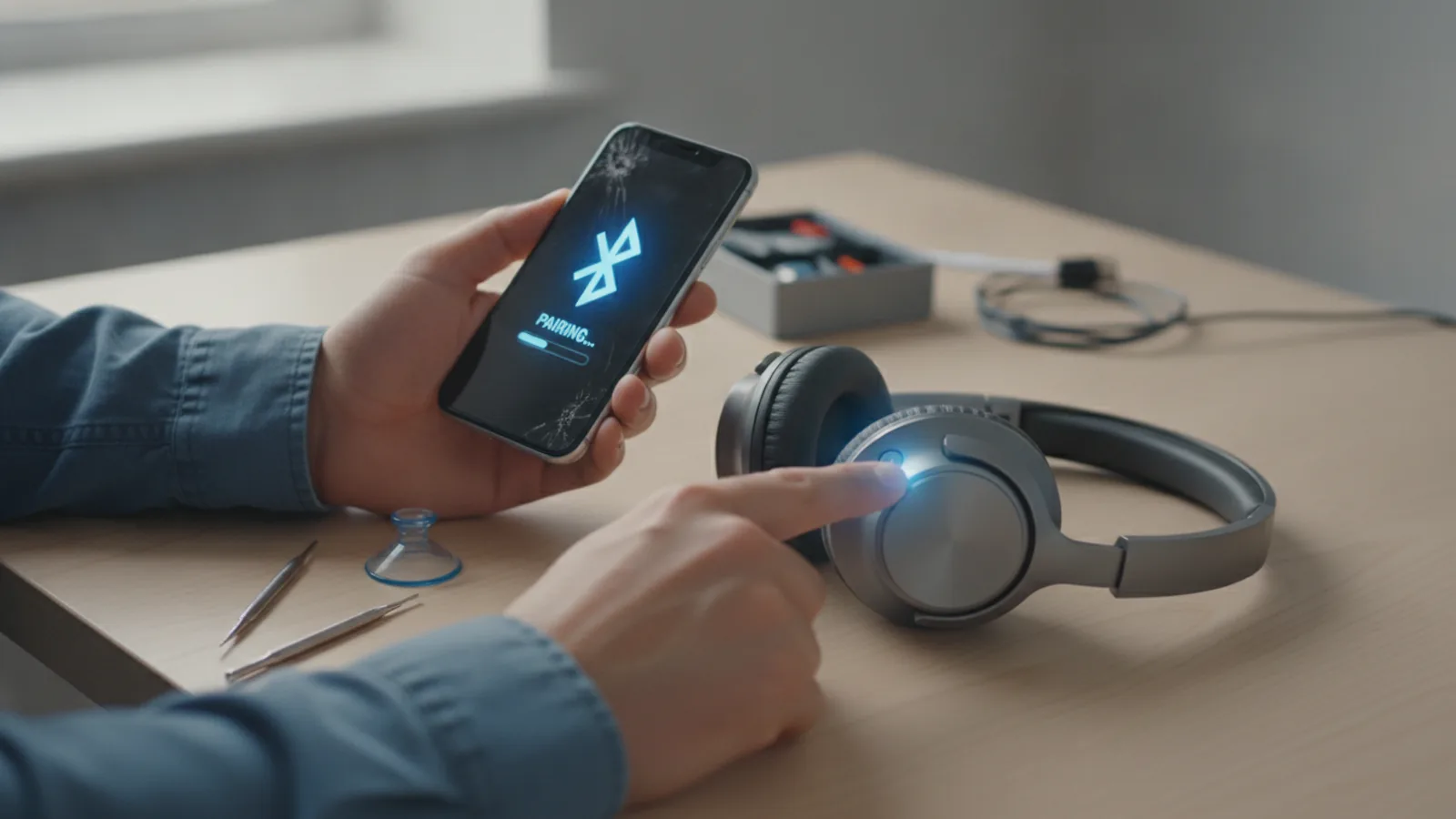
- For many over-ear and on-ear headphones: Start with the headphones turned off. Then, press and hold the power button. Keep holding it even after you hear the "power on" sound. After a few more seconds, you should hear a second sound or a voice prompt like "Pairing," and the indicator light will start flashing, usually blue and red, or just blue.
- For true wireless earbuds (like AirPods, Galaxy Buds, etc.): The process often involves the charging case. Place the earbuds inside the case and leave the lid open. Then, press and hold a button on the case itself until an indicator light on the case starts to flash.
- For headphones with a dedicated Bluetooth button: Turn the headphones on first. Then, press and hold the separate Bluetooth button until the indicator light begins to flash.
Step 2: Open Bluetooth Settings on Your Device
With your headphones discoverable, you now need to tell your phone, computer, or tablet to look for them. Here’s how to find the Bluetooth menu on major platforms.
For an iPhone or iPad (iOS):
- Go to the Settings app (the grey gear icon) on your home screen.
- Tap on Bluetooth.
- Make sure the toggle switch at the top is green and turned on. Your iPhone will automatically start scanning for nearby devices under the "Other Devices" section.
For an Android Phone or Tablet:
- Pull down the notification shade from the top of the screen.
- Press and hold the Bluetooth icon (a stylised 'B'). This will take you directly to the Bluetooth settings menu. Alternatively, go to Settings > Connected devices > Pair new device.
- Your phone will begin scanning for available devices.
For a Mac Computer (macOS):
- Click the Apple logo in the top-left corner of the screen.
- Go to System Settings (or System Preferences on older versions).
- Click on Bluetooth in the sidebar. The window will show nearby devices that are in pairing mode.
For a Windows PC (Windows 10/11):
- Open the Start Menu and click the Settings cogwheel icon.
- Go to Devices (or Bluetooth & devices on Windows 11).
- Click on "Add Bluetooth or other device" (or "Add device").
- In the new window that appears, select Bluetooth. Windows will now search for your headphones.
Step 3: Select Your Headphones from the List and Connect
After a few moments, you should see the name of your headphones appear in the list of available devices on your screen. The name should match what you noted earlier (e.g., "Bose QC45", "Sony LinkBuds S").
- Tap or click on the name of your headphones.
- Your device may show a confirmation pop-up asking if you want to pair. Confirm by tapping Pair or Connect.
- Wait a few seconds. You should hear a confirmation sound in your headphones (like a chime or a "Device Connected" voice prompt), and the flashing light on them should turn to a solid, steady colour (usually blue) or turn off completely.
On your device's Bluetooth menu, the headphones will now move from the "available" list to the "connected" or "my devices" list, with a "Connected" status next to them. You are now ready to play audio!
Common Problems When You Pair Bluetooth Headphones
Sometimes things don't go as planned. Here are the most common issues and how to fix them.
Problem: My headphones don't appear in the Bluetooth list.
- Solution 1: Double-check pairing mode. This is the cause 90% of the time. Are you sure the headphones are in pairing mode, not just turned on? The light should be flashing rapidly in a specific pattern as described in the manual, not just glowing steadily. Try turning the headphones off and repeating the pairing mode activation step.
- Solution 2: Move closer and reduce interference. Bluetooth has a limited range (about 10 metres / 33 feet). Bring your headphones right next to the device you're pairing with. Move away from other electronics like Wi-Fi routers, microwave ovens, or other Bluetooth devices that could be causing signal interference.
- Solution 3: Refresh the scan. On your phone or computer, toggle Bluetooth off for 10 seconds, then turn it back on. This forces a fresh scan for devices.
Problem: The pairing fails or gives an error message.
- Solution 1: "Forget" the device and start over. If you've tried to pair before and it failed, your device might have a corrupted entry stored. Go into your Bluetooth settings, find your headphones in the list (even if they say "not connected"), tap the 'i' or gear icon next to them, and select "Forget This Device" or "Unpair". Then, restart the entire pairing process from scratch.
- Solution 2: Restart both devices. A classic for a reason. Turn your headphones completely off. Then, restart your phone or computer. This can clear temporary software glitches that are preventing the connection.
- Solution 3: Check for software updates. Ensure your phone, tablet, or computer has the latest software updates installed. Updates often include fixes for Bluetooth connectivity bugs.
Problem: My headphones are connected, but there's no sound.
- Solution 1: Check the audio output. On your device, make sure the audio is actually being sent to your headphones. On an iPhone, swipe down from the top-right to open Control Centre, tap the AirPlay icon (a cone with circles), and ensure your headphones are selected. On Android, check the volume settings and media output selector. On a computer, click the volume icon in the taskbar and confirm your headphones are the selected playback device.
- Solution 2: Check the volume. It sounds simple, but check the volume on both the headphones themselves and your source device. They often have independent volume controls. Turn them both up.
Step-by-Step Instructions
Test the result
Verify the outcome against the original goal and fix any warning signs before treating the task as complete.
Document what changed
Save the final settings, decisions, or checks so the same process is easier to repeat later.
Quick Reference for Troubleshooting
| Situation | Use this | Why |
|---|---|---|
| First-time pairing fails | Restart pairing mode on headphones | Pairing mode may have timed out before you found it on your device. |
| Can't find headphones in the list | Toggle device Bluetooth off and on | Forces the device to perform a new, clean scan for discoverable items. |
| Repeatedly fails to connect | Use "Forget This Device" then re-pair | Clears any corrupted connection data from previous failed attempts. |
| Connected, but audio plays on phone speakers | Check the Audio Output selector | Ensures your device is actively sending the audio signal to the headphones. |
Advanced Tips for Pairing Bluetooth Headphones
Once you've mastered the basics, these tips can improve your experience.
- Understanding Multi-Point Pairing: Some modern headphones support "multi-point" or "multi-device" connection. This allows them to be actively connected to two devices at once, for example, your laptop and your phone. You could be listening to music on your laptop, and if a call comes in on your phone, the headphones will automatically switch over. To use this, you typically pair with the first device, disconnect, pair with the second device, and then reconnect to the first. Check your manual to see if your model supports this feature.
- Managing Bluetooth Codecs: Codecs (like SBC, AAC, aptX, LDAC) are algorithms that compress and decompress digital audio. Your headphones and source device must both support the same high-quality codec to use it. For Apple devices, AAC is the best you'll get. For many Android devices, you can enable "Developer Options" to see which codec is active and sometimes force a higher-quality one like aptX HD or LDAC if your headphones support it. Generally, you don't need to worry about this, as the devices will negotiate the best available codec automatically.
- Using Manufacturer Apps: Most major headphone brands (Sony, Bose, Sennheiser, etc.) offer a companion app for your smartphone. It is highly recommended you install this. These apps often provide firmware updates that can improve connectivity, as well as access to equalisers, control customisation, and features like multi-point management.
- Resetting Your Headphones: If you are having persistent, unsolvable issues, a factory reset might be the last resort. This will erase all previous pairing information from the headphones. The method varies wildly between models, so you must consult your user manual for the specific button combination required to perform a reset.
How To Pair Bluetooth Headphones FAQ
What's the difference between pairing and connecting?
How many devices can my headphones remember?
Can I pair my headphones with a TV or games console?
Why does my audio cut out or stutter?
Final Checklist for Pairing Bluetooth Headphones
Before you start playing audio, run through this quick final checklist to confirm everything is set up correctly.
- Headphones are in Pairing Mode: The indicator light is flashing, not just on.
- Device Bluetooth is On: The Bluetooth setting on your phone, tablet, or PC is enabled.
- Correct Device Selected: You tapped on the correct name from the list of available devices.
- Connection Confirmed: You heard a confirmation sound in your headphones and saw the "Connected" status on your device screen.
- Audio Output Verified: Your device is set to use the headphones as the primary audio playback device.
- Volume is Up: The volume is turned up on both your headphones and your source device.
With these steps and checks, you should have a solid, working connection between your headphones and your device, ready for music, podcasts, or calls.